Learning Objectives
By the end of this lesson, you will be able to:
- Identify every major part of the Excel window.
- Explain the role of the Ribbon, tabs, and Quick Access Toolbar.
- Use the Name Box and Formula Bar with confidence.
- Navigate sheet tabs, status bar and zoom slider.
Interface Overview
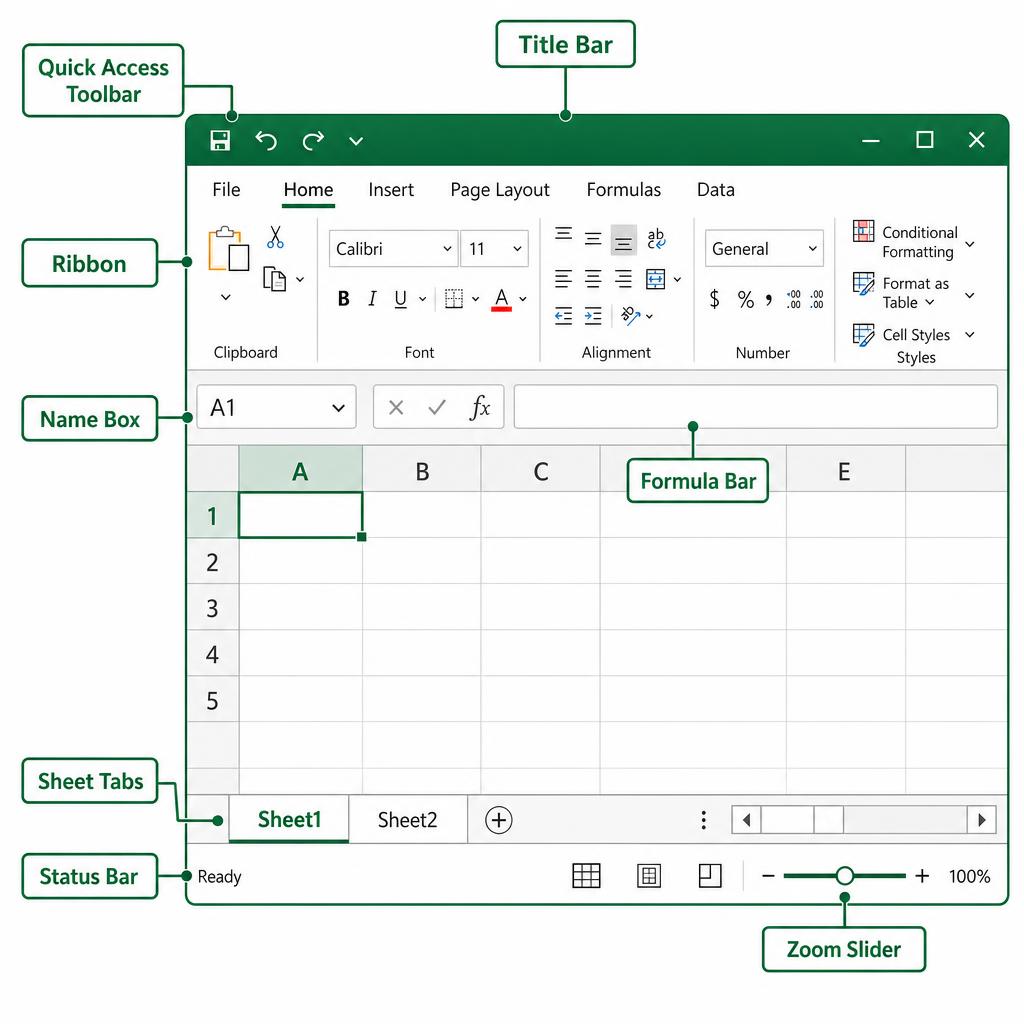
When you open Excel, you see a window packed with buttons, boxes and tabs. It looks busy at first, but it is actually organized into just a few clear zones — a top area for commands, a middle area for your data, and a bottom area for sheet and view controls.
Title Bar & Quick Access Toolbar
The Title Bar sits at the very top and shows the current workbook name (for example Book1 — Excel). The Quick Access Toolbar (QAT) is the small strip with Save, Undo and Redo icons — you can customise it to keep your most-used commands one click away.
Ribbon & Tabs
The Ribbon is the wide toolbar under the title bar. It is split into tabs — File, Home, Insert, Page Layout, Formulas, Data, Review, View — and each tab groups related commands. For example, the Home tab holds formatting, and Insert holds charts and tables.
| Tab | What it does |
|---|---|
| File | Open, save, print and manage the workbook. |
| Home | Fonts, colors, alignment, number formats, find & replace. |
| Insert | Charts, tables, pictures, PivotTables, shapes. |
| Page Layout | Margins, orientation, print area and themes. |
| Formulas | Insert functions and use the Formula library. |
| Data | Sort, filter, remove duplicates, import data. |
| Review | Spell check, comments and protect the workbook. |
| View | Zoom, freeze panes, gridlines and workbook views. |
Alt on Windows to see key tips light up on the Ribbon — every command becomes reachable from the keyboard.Name Box & Formula Bar
Just below the Ribbon you will see two important boxes side by side:
- Name Box — shows the address of the active cell (like
A1). You can also type an address here and pressEnterto jump straight to that cell. - Formula Bar — shows the real content of the active cell. If the cell contains a formula like
=A1+A2, the grid shows the answer but the Formula Bar shows the formula itself.
The Worksheet Grid
The big area in the middle is the worksheet grid — millions of cells arranged in rows (numbered) and columns (lettered). The cell with the dark green border is the active cell — whatever you type goes there.
Sheet Tabs
At the bottom-left you can see sheet tabs like Sheet1, Sheet2. Click a tab to switch sheets, or hit the + button to add a new one. Right-click a tab to rename, colour, move, copy or delete it.
Status Bar & Zoom Slider
The Status Bar runs along the very bottom. When you select a range of numbers, it instantly shows Average, Count and Sum — a super-quick way to inspect data without writing a formula. On the far right, the Zoom Slider lets you zoom the sheet in and out from 10% up to 400%.
Key Terms
The tabbed toolbar of commands at the top of Excel.
A category on the Ribbon (Home, Insert, etc.).
A customisable strip for your most-used commands.
Shows / jumps to the active cell's address.
Displays and edits the true content of the active cell.
Bottom strip showing Sum, Average, Count and view options.
Practice Questions
- 1. Open Excel and locate the Title Bar, Ribbon, Name Box and Formula Bar. Say each name out loud.
- 2. Click the Name Box, type
D25and pressEnter. Where did the active cell go? - 3. Type
=10+20in any cell. Notice what the grid shows and what the Formula Bar shows. - 4. Select a few numbers and check the Status Bar — write down the Sum, Average and Count you see.
- 5. Add a new sheet using the
+button and rename it to Practice.
Quick Quiz (MCQs)
Summary
- The Excel window is split into a top command area, a middle data area, and a bottom control area.
- The Ribbon holds tabs (Home, Insert, Formulas, Data …) and each tab groups related commands.
- The Name Box shows / jumps to the active cell; the Formula Bar shows its real content.
- The Status Bar quickly shows Sum, Average and Count for any selection.
- Sheet tabs and the zoom slider live at the bottom of the window.
Practice this lesson with real files
Get free practice workbooks, notes and doubt solving inside the free VIP WhatsApp community.
Join Free WhatsApp VIP Community