Learning Objectives
By the end of this lesson, you will be able to:
- Clearly explain what a workbook and a worksheet are.
- Describe the difference between a workbook and a worksheet.
- Recognize common Excel file extensions (.xlsx, .xls, .xlsm, .csv).
- Create a new workbook and add, rename, move, copy or delete worksheets.
Lesson Overview
In Lesson 1 you learnt that Excel stores data inside a workbook, and in Lesson 2 you toured the interface. In this lesson, you will go one step deeper and learn how a workbook is structured, what worksheets are, and how to manage them like a pro.
Introduction
Every Excel file you open, save or share is a workbook. Inside that workbook there can be one worksheet or many worksheets. Most beginners use these two words interchangeably — but they are not the same thing. Understanding the difference is the foundation of working with Excel confidently.
What is a Workbook?
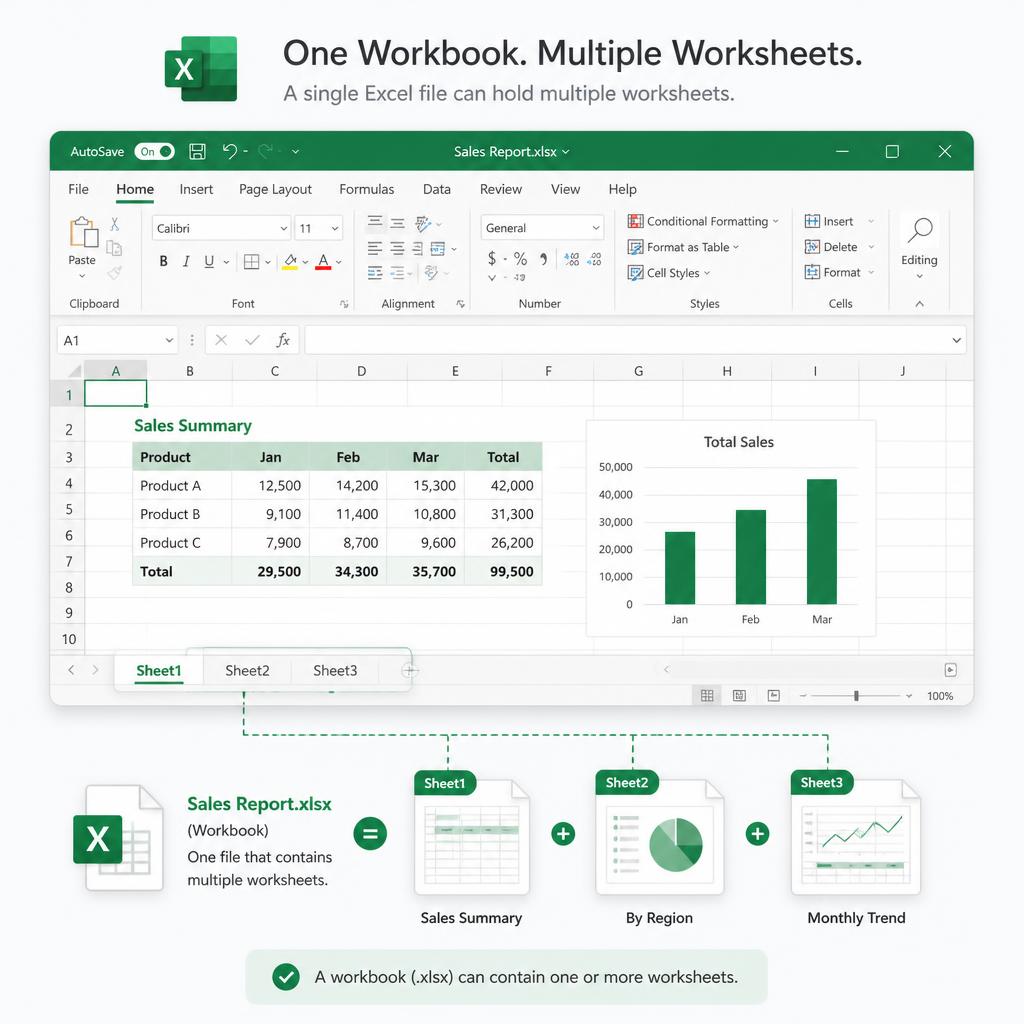
A workbook is the entire Excel file. It is what you save on your computer with an extension like .xlsx. Think of a workbook as a notebook: one book, one cover, one name — but many pages inside.
Sales Report.xlsx).What is a Worksheet?
A worksheet (also called a sheet) is a single page inside a workbook. It is the grid of rows and columns where you actually type data, write formulas and build charts. Each worksheet has its own tab at the bottom of the Excel window — Sheet1, Sheet2, and so on.
Difference between Workbook and Worksheet
| Aspect | Workbook | Worksheet |
|---|---|---|
| Meaning | The whole Excel file | One tab inside the file |
| Also called | Excel file / .xlsx file | Sheet / tab |
| Contains | One or more worksheets | Rows, columns, cells, charts |
| Saved on disk | Yes — as a single file | No — lives inside a workbook |
| Example | Sales Report.xlsx | Sheet1, Jan, Summary |
Workbook Structure
A workbook is made up of:
- A file name and file extension (e.g. Sales Report.xlsx).
- One or more worksheets, each with its own tab at the bottom.
- Workbook-level settings — themes, defined names, print settings.
- Optional extras like charts, pivot tables and macros (in .xlsm files).
Worksheet Structure
Every worksheet is made up of:
- Columns labeled with letters — A, B, C … up to XFD (16,384 columns).
- Rows labeled with numbers — 1, 2, 3 … up to 1,048,576 rows.
- Cells at the intersection of each row and column (e.g. A1, B3).
- A single sheet tab name (which you can rename any time).
Real-life Example
Imagine you run a small shop and want to track sales for the year. You create one Excel file called Sales 2025.xlsx. Inside that file (the workbook), you make 12 worksheets — one for each month: Jan, Feb, Mar … Dec. You can also add a Summary sheet that pulls totals from all months.
Excel File Extensions
The modern default Excel workbook format. Recommended for most files.
The old Excel 97–2003 format. Still opens, but avoid saving new files in it.
An Excel workbook that supports macros (VBA code). Use only when you need automation.
Comma-separated values — plain text, one sheet only, no formulas or formatting.
How to Create a Workbook
There are three easy ways to create a new workbook:
- 1. Open Excel → click File → New → Blank Workbook.
- 2. Press the shortcut
Ctrl + Nanywhere inside Excel. - 3. Right-click on your desktop → New → Microsoft Excel Worksheet.
Save it using Ctrl + S and give it a clear, descriptive name like Sales 2025.xlsx.
Add, Rename, Move, Copy & Delete Worksheets
Click the + button next to the last sheet tab, or press Shift + F11.
Double-click the sheet tab, type a new name and press Enter.
Click and drag the sheet tab left or right to reorder it.
Hold Ctrl, then drag the sheet tab — Excel creates a duplicate with (2) at the end.
Right-click the tab → Tab Color → choose any colour to organize sheets visually.
Right-click the tab → Delete. Careful — deleted sheets cannot be undone after saving.
Best Practices
- Give every worksheet a short, meaningful name (e.g. Jan, Summary, Data).
- Keep raw data on one sheet and reports / dashboards on separate sheets.
- Avoid using spaces at the start / end of sheet names — it causes formula errors.
- Use .xlsx by default; only use .xlsm when you truly need macros.
- Save often with Ctrl + S and keep a backup for important workbooks.
Key Terms
The entire Excel file that you save on disk.
A single tab (page) inside a workbook.
The small tab at the bottom that names each worksheet.
The letters after the dot (.xlsx, .xls, .xlsm, .csv) that tell Excel the file type.
The worksheet you are currently viewing and editing.
A workbook saved as .xlsm so it can run VBA macros.
Remember Box
Practice Questions
- 1. Create a new workbook and save it as
Practice.xlsxon your desktop. - 2. Add 3 worksheets and rename them to Jan, Feb, Mar.
- 3. Change the tab colour of Jan to green and Feb to blue.
- 4. Make a copy of the Jan sheet and rename the copy to Jan Backup.
- 5. Delete Jan Backup, then save the file again with
Ctrl + S.
Quick Quiz (MCQs)
Chapter Summary
- A workbook is the whole Excel file; a worksheet is one tab inside it.
- One workbook can hold many worksheets — perfect for organizing related data.
- Common Excel extensions are .xlsx (default), .xls (old), .xlsm (macros) and .csv (plain data).
- You can add, rename, move, copy, colour and delete worksheets from the sheet tab area.
- Use clear sheet names, keep raw data separate from reports, and save often.
Practice this lesson with real files
Get free practice workbooks, notes and doubt solving inside the free VIP WhatsApp community.
Join Free WhatsApp VIP Community