Learning Objectives
By the end of this lesson, you will be able to:
- Define rows, columns and cells in your own words.
- Read and write any cell address (A1, B2, C5, …).
- Identify the active cell and know why it matters.
- Recall the maximum number of rows and columns in a worksheet.
- Select cells, entire rows and entire columns quickly.
Lesson Overview
Every worksheet in Excel is a giant grid. That grid is made of three building blocks — rows, columns and cells. Understanding them well is the foundation of everything you will do in Excel: entering data, writing formulas, formatting and building reports.
Introduction
Open any Excel worksheet and you will see a grid of horizontal lines and vertical lines. The horizontal strips are rows, the vertical strips are columns, and the small boxes where they meet are cells. That's it — the whole of Excel is built on this simple structure.
What is a Row?
A row is a horizontal line of cells running from left to right across the worksheet. Rows are labelled with numbers on the left side — 1, 2, 3, 4, and so on.
What is a Column?
A column is a vertical line of cells running from top to bottom in the worksheet. Columns are labelled with letters at the top — A, B, C, D … Z, then AA, AB, … all the way to XFD.
What is a Cell?
A cell is a single box in the worksheet — the point where one row and one column intersect. Every cell can hold text, numbers, dates, or a formula. A cell is the smallest unit of data in Excel.
Row Numbers and Column Letters
Excel uses a very simple labelling system so you can find any cell instantly:
- Row numbers appear on the left edge — 1, 2, 3, 4, …
- Column letters appear across the top — A, B, C … Z, AA, AB, … XFD.
- The row number and column letter together give the cell's address.
Cell Address (Cell Reference)
A cell address (also called a cell reference) is the unique name of a cell. It is written as the column letter followed by the row number — always in that order.
| Cell Address | Column | Row | Meaning |
|---|---|---|---|
| A1 | A | 1 | First cell in the worksheet |
| B2 | B | 2 | Column B, row 2 |
| C5 | C | 5 | Column C, row 5 |
| D10 | D | 10 | Column D, row 10 |
| Z100 | Z | 100 | Column Z, row 100 |
A1 is correct, 1A is not.Active Cell
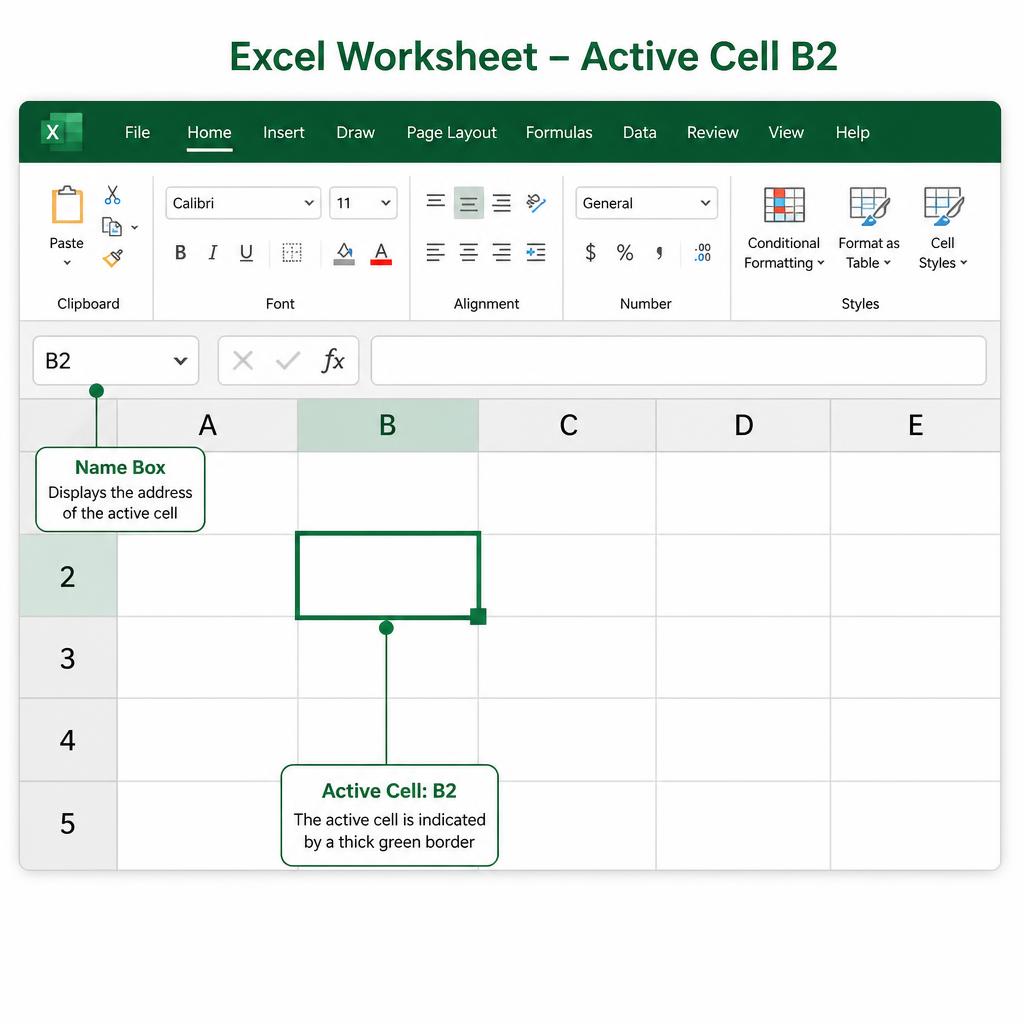
The active cell is the cell that is currently selected. Excel shows a thick green border around it, and its address appears in the Name Box at the top-left of the worksheet. Anything you type goes into the active cell.
Maximum Rows and Columns in Excel
1,048,576 rows per worksheet (numbered 1 to 1,048,576).
16,384 columns per worksheet (labelled A to XFD).
Over 17 billion cells in a single worksheet.
Ctrl + ↓ jumps to the last row; Ctrl + → jumps to the last column.
Difference between Rows, Columns and Cells
| Aspect | Row | Column | Cell |
|---|---|---|---|
| Direction | Horizontal | Vertical | A single box |
| Labelled by | Numbers (1, 2, 3…) | Letters (A, B, C…) | Letter + number (A1) |
| Maximum | 1,048,576 | 16,384 (up to XFD) | 17+ billion per sheet |
| Example | Row 5 | Column C | C5 |
| Purpose | Groups data across | Groups data down | Holds one value |
Worksheet Grid Structure
Put it all together and you get the Excel worksheet grid — a huge table of rows and columns, where every intersection is a cell with a unique address. That grid is where all your data, formulas and formatting live.
How to Select Cells, Rows and Columns
Click the cell. Its address appears in the Name Box.
Click the first cell, hold Shift, then click the last cell — or click and drag.
Click the row number on the left, or press Shift + Space on any cell in that row.
Click the column letter at the top, or press Ctrl + Space on any cell in that column.
Click the small triangle above row 1 and left of column A, or press Ctrl + A.
Hold Ctrl and click each cell or range you want to add to the selection.
Real-Life Example
Imagine a simple student marksheet. Column A holds student names, column B holds Math marks and column C holds English marks. Each row is one student. The cell at B2 is the Math score of the student in row 2. Change one cell and the whole report can update instantly with a formula.
Common Uses of Rows, Columns and Cells
- Rows are usually used for records — one row per student, product, sale or day.
- Columns are usually used for fields — Name, Date, Amount, Category, Status.
- Cells hold the actual value or formula for each record and field.
- Ranges of cells (like A1:C10) are used in formulas, charts and pivot tables.
Best Practices
- Keep one topic per column (e.g. Date, Name, Amount) and one record per row.
- Don't leave blank rows or columns inside your data — it breaks sorting and formulas.
- Use row 1 for clear column headings and freeze it with View → Freeze Top Row.
- Refer to cells by their address (A1, B2) — it makes formulas easy to read.
- Use Ctrl + Arrow keys to navigate large tables quickly.
Key Terms
A horizontal strip of cells, labelled with a number (1, 2, 3…).
A vertical strip of cells, labelled with a letter (A, B, C…).
A single box at the intersection of a row and a column.
The unique name of a cell — column letter followed by row number (e.g. A1).
The currently selected cell — highlighted with a thick border.
A group of adjacent cells written as start:end (e.g. A1:C10).
Remember Box
A1, B2 or C5.Practice Questions
- 1. Open a new worksheet and type your name in cell
A1. - 2. Enter marks in cells
B1,B2andB3. - 3. Select the entire row 1 using the shortcut
Shift + Space. - 4. Select the entire column B using the shortcut
Ctrl + Space. - 5. Press
Ctrl + ↓in column A to jump to the last row and note the row number.
Quick Quiz (MCQs)
Chapter Summary
- Rows run horizontally and are labelled with numbers (1, 2, 3…).
- Columns run vertically and are labelled with letters (A, B, C… up to XFD).
- A cell is a single box formed by the intersection of one row and one column.
- Every cell has a unique address written as column letter + row number (A1, B2, C5).
- The active cell is the currently selected cell — its address shows in the Name Box.
- One worksheet holds 1,048,576 rows and 16,384 columns — over 17 billion cells.
Practice this lesson with real files
Get free practice workbooks, notes and doubt solving inside the free VIP WhatsApp community.
Join Free WhatsApp VIP Community