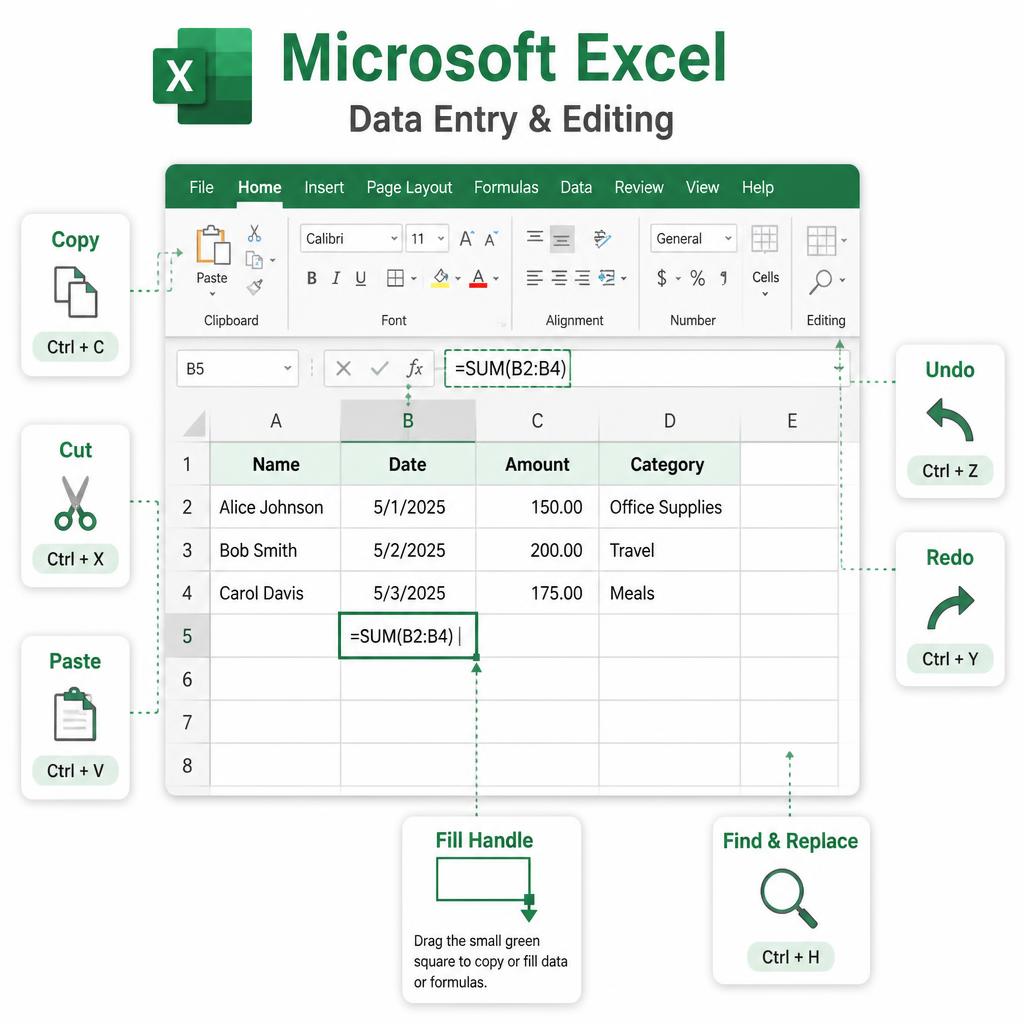
Learning Objectives
By the end of this lesson, you will be able to:
- Enter text, numbers, dates, times, currency and percentages correctly.
- Edit cell contents using the cell, the formula bar or the F2 key.
- Copy, cut, paste and use Paste Special to move data safely.
- Use AutoFill and the Fill Handle to fill series in seconds.
- Undo, redo, clear, delete, find, replace and spell-check like a pro.
- Speed up daily work using essential data-entry keyboard shortcuts.
Lesson Overview
Excel is only as useful as the data inside it. In this lesson you will learn the everyday craft of working with data — how to type it in, how to fix it, how to move it around and how to fill hundreds of cells in one drag. These are the actions you will perform every single day, so it is worth doing them well from day one.
Introduction
Every Excel file starts empty. Behind every dashboard, report or chart is someone quietly entering and editing data — one cell at a time. Master that skill and everything else in Excel becomes easier. This lesson focuses on the practical building blocks: typing, editing, copying, filling, undoing and cleaning up your data.
What is Data Entry?
Data entry means typing information into a cell. That information can be a word, a number, a date, a formula or anything else you can type. Excel accepts whatever you enter and then tries to guess what kind of data it is, so it can align, format and calculate it correctly.
Enter or Tab.What is Data Editing?
Data editing means changing what is already inside a cell — fixing a spelling mistake, updating a number, or replacing an old value with a new one. Excel gives you three ways to edit: type over the cell, use the formula bar, or press F2 to edit inside the cell.
Types of Data in Excel
Excel treats different kinds of data in different ways. Recognising the type of your data helps Excel calculate, sort and format it properly.
| Type | Example | Aligned | Notes |
|---|---|---|---|
| Text | Sunil, Product A, Delhi | Left | Any letters or mixed characters. |
| Number | 125, -47, 3.14 | Right | Used in calculations. |
| Date | 05-Aug-2025, 8/5/2025 | Right | Stored as serial numbers. |
| Time | 10:30 AM, 14:45 | Right | Fraction of a day internally. |
| Currency | ₹1,250.00, $99.99 | Right | Number with currency symbol. |
| Percentage | 25%, 7.5% | Right | 0.25 shown as 25%. |
| Formula | =A1+B1, =SUM(A1:A10) | Right | Starts with an equals sign. |
How to Enter Data in a Cell
- 1. Click the cell where you want to add data (it becomes the active cell).
- 2. Start typing — what you type appears in the cell and in the formula bar.
- 3. Press
Enterto confirm and move down, orTabto move right. - 4. Press
Escto cancel before you confirm.
Enter → next row · Tab → next column · Shift + Enter → previous row · Shift + Tab → previous column.Editing Existing Data
There are three easy ways to edit what is already inside a cell:
Double-click the cell to place the cursor inside it and edit directly.
Select the cell and press F2 — the cursor jumps to the end of the value.
Click inside the formula bar to edit long text or formulas comfortably.
To completely replace a value, just click the cell and start typing — the new value overwrites the old one. Press Enter to confirm or Esc to cancel.
Selecting Cells
- One cell — click it. The Name Box shows its address.
- A range — click and drag, or click the first cell and Shift-click the last.
- Entire row — click the row number, or press Shift + Space.
- Entire column — click the column letter, or press Ctrl + Space.
- Whole worksheet — press Ctrl + A, or click the triangle above row 1.
- Non-adjacent cells — hold Ctrl and click each cell or range.
Copy, Cut and Paste
Duplicates the selected cells so you can paste them anywhere. The original stays.
Moves the selected cells. The original is cleared once you paste.
Places the copied or cut cells at the active cell location.
Esc to clear it once you are done.Paste Special
Sometimes you don't want to paste everything. Maybe you only want the values, or only the formatting. Paste Special lets you choose exactly what to paste. Open it with Ctrl + Alt + V or right-click → Paste Special.
| Option | What it pastes | Use when |
|---|---|---|
| Values | Only the numbers / text, no formulas | You want the results of a formula, not the formula itself. |
| Formulas | Only the formulas, no formatting | You are moving calculations to a new sheet. |
| Formats | Only the formatting (font, colour, borders) | You want to reuse styling across ranges. |
| Column widths | Only the column widths of the source | You are rebuilding a report layout. |
| Transpose | Rows become columns and vice-versa | You need to flip a horizontal list into vertical, or the reverse. |
Undo, Redo and Repeat
Reverses your last action. Press it again and again to step back further.
Restores an action you just undone.
Repeats your last action on a new selection — great for repetitive formatting.
AutoFill
AutoFill is Excel's smart way of continuing a pattern. Type Monday in a cell and drag down — Excel fills in Tuesday, Wednesday, Thursday and so on. Try it with months, dates and numbered lists too.
- Type Jan, then drag down → Feb, Mar, Apr…
- Type 1 in one cell and 2 in the next, select both and drag → 3, 4, 5…
- Type a date like 01-Jan-2025 and drag → next dates in sequence.
- Type Product 1 and drag → Product 2, Product 3…
Fill Handle
The fill handle is the tiny green square at the bottom-right corner of the active cell. Hover on it and the cursor turns into a small black plus (+). Click and drag it to copy a value or continue a series across cells.
Continues the pattern or copies the value into the dragged range.
Fills down automatically to the last row of the adjacent data column.
Right-click drag opens a menu — Fill Series, Fill Formats, Fill Weekdays and more.
Copies the exact same value instead of continuing the series.
Clear Cell Contents
To remove the value of a cell without deleting the cell itself, select the cell and press Delete. To also clear its formatting or comments, use Home → Editing → Clear and pick the option you need.
- Clear Contents — removes the value, keeps the formatting.
- Clear Formats — removes colours, borders and number format, keeps the value.
- Clear Comments and Notes — removes attached comments.
- Clear All — removes value, formatting and comments in one go.
Delete Data
Clearing removes the value, but deleting removes the cell, row or column itself. Right-click a row number or column letter and choose Delete to remove it entirely — the surrounding data shifts to fill the gap.
Ctrl + Z immediately if you delete the wrong one.Find and Replace
Find helps you locate any value in the worksheet. Replace lets you swap it with a new one — one at a time or all at once.
Search for a value in the current worksheet or entire workbook.
Find a value and replace it with a new one — one match or all matches.
Turn on to make the search case-sensitive (‘sunil’ vs ‘Sunil’).
Finds only cells whose complete content matches your search.
Spell Check
Excel does not underline spelling mistakes as you type like Word does, but it can check your worksheet on demand. Press F7 or click Review → Spelling. Excel scans the sheet, suggests corrections and lets you accept, ignore or add words to the dictionary.
Data Entry Shortcuts
| Shortcut | What it does |
|---|---|
| Enter | Confirm and move to the cell below |
| Tab | Confirm and move to the cell on the right |
| Esc | Cancel the entry |
| F2 | Edit inside the active cell |
| Ctrl + Enter | Enter same value in all selected cells at once |
| Alt + Enter | New line inside the same cell |
| Ctrl + ; | Insert today's date |
| Ctrl + Shift + ; | Insert current time |
| Ctrl + D | Fill down from the cell above |
| Ctrl + R | Fill right from the cell to the left |
| Ctrl + Z / Ctrl + Y | Undo / Redo |
| Ctrl + C / X / V | Copy / Cut / Paste |
| Ctrl + F / Ctrl + H | Find / Replace |
| F7 | Run spell check |
Real-Life Example
Imagine you are entering last month's expenses. Type the date in A2 and drag the fill handle down to auto-fill all 30 dates. Type each category name in column B. In column C, type the amount. Notice a typo in row 7? Press F2, fix it, and press Enter. Realise "Feb" should be "February" everywhere? Press Ctrl + H, type Feb, replace with February, click Replace All. In under a minute, you have entered clean, consistent data.
Best Practices
- Enter dates in a consistent format from day one (e.g. always 05-Aug-2025).
- Never mix text and numbers in the same column — it breaks sorting and formulas.
- Use AutoFill and shortcuts to avoid typing the same thing over and over.
- Save often with Ctrl + S so undo history is not the only backup.
- Use Find & Replace instead of manually editing dozens of cells.
- Keep raw data on one sheet and reports on another so edits are safe.
Common Mistakes
- Typing numbers with letters or spaces — Excel then treats them as text.
- Using inconsistent date formats (5/8/25 vs 05-Aug-2025) in the same column.
- Deleting rows or columns without checking if formulas depend on them.
- Pasting values on top of formulas by accident — always use Paste Special → Values.
- Relying on Undo after saving and closing — undo history disappears.
Key Terms
Typing new information into a cell and confirming it.
Changing or correcting information already in a cell.
Duplicate or move cell contents from one place to another.
Choose exactly what to paste — values, formulas, formats or a transpose.
The small green square used to copy or continue a series across cells.
Excel's ability to continue a recognised pattern like days, months or numbers.
Search for a value and optionally swap it with a new one.
Reverse or reapply your most recent actions.
Remember Box
Practice Questions
- 1. Type the numbers 1 to 20 in column A using the fill handle — do it in one drag.
- 2. In cell
B1type January and fill down to get all 12 months. - 3. Enter today's date in
C1usingCtrl + ;. - 4. Copy the range
A1:C5and paste only the values intoE1using Paste Special. - 5. Use Find & Replace to change every occurrence of Jan to January.
Quick Quiz (MCQs)
Chapter Summary
- Data entry means typing values; data editing means changing them.
- Excel supports text, numbers, dates, times, currency, percentages and formulas.
- Edit cells by double-clicking, pressing F2, or using the formula bar.
- Copy (Ctrl+C), Cut (Ctrl+X) and Paste (Ctrl+V) move data around; Paste Special controls exactly what gets pasted.
- AutoFill and the fill handle turn repetitive typing into a quick drag.
- Undo (Ctrl+Z), Redo (Ctrl+Y), Find (Ctrl+F), Replace (Ctrl+H) and F7 spell-check keep your data clean.
- Consistent formats and shortcuts are what separate slow beginners from confident Excel users.
Practice this lesson with real files
Get free practice workbooks, notes and doubt solving inside the free VIP WhatsApp community.
Join Free WhatsApp VIP Community